HOW IT WORKS

From an empty phone to a live score, step by step

This guide walks through everything in Pingel in the order you will need it. You set up the team, bring in the other managers and the families, run a match and share it live, then read the season back. Every screenshot is the real iPhone app. Android has the same screens, in the same places, with the same buttons.

Managers

They keep the score. Every manager can edit the squad and start matches, and log goals from their own phone.

Followers

Family and friends with the app. They follow the whole season, read-only, and can get a buzz for every goal.

Anyone with the link

They open one match in a browser. They need no app and no account, only six letters or a link.

1

Set up your team

Do this once, at home, a few days before the first match. It takes about two minutes, and every match after that starts out knowing your squad, your kit and how long a half runs.

STEP 1

Download Pingel and create a team

Pingel is free on the App Store and on Google Play. You do not make an account. The first screen asks one question: is this a new team, or one somebody else already runs?

  1. Starting fresh? Tap Create a Team.
  2. Another manager already set the team up? Tap Join a Team and skip to chapter 2.

On an iPhone with Apple Intelligence, the next screen can read the team off your club's website. Paste the link to your team's page and tap the sparkle button: the name, the kit colours and the squad are filled in for you. The page is read on the phone and never sent anywhere. No club page? Tap Skip.
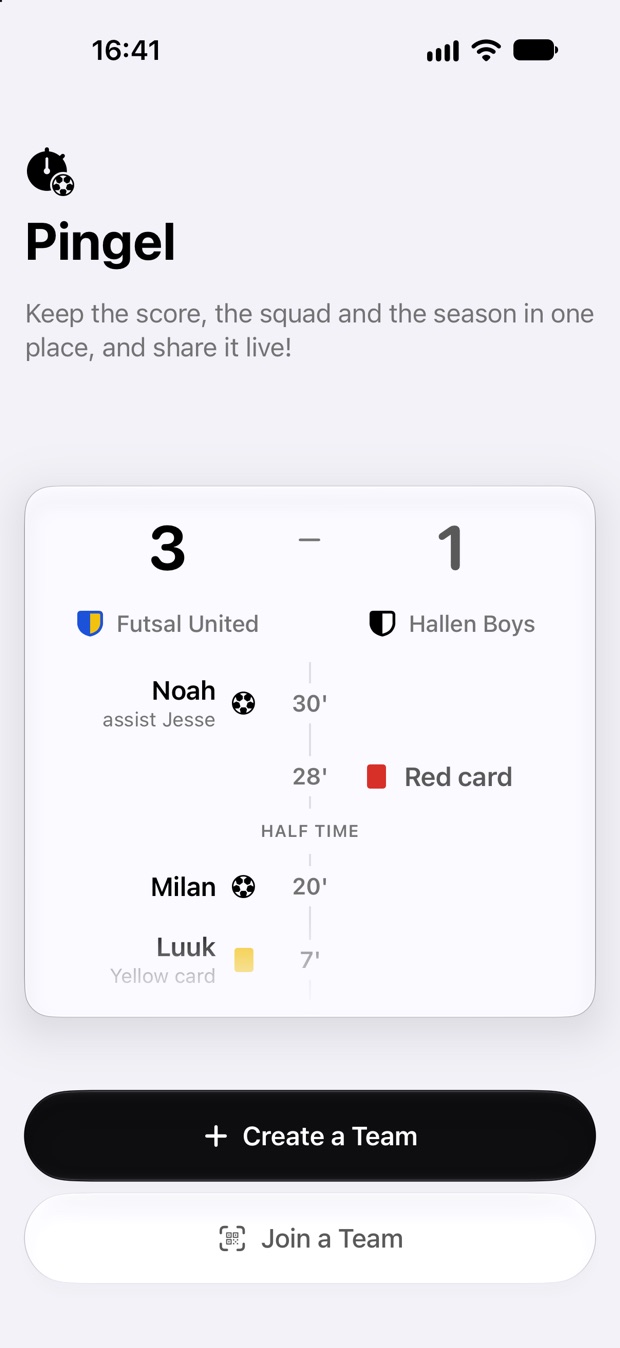
The Pingel welcome screen with a Create a Team button and a Join a Team button.

STEP 2

Name, kit and match length

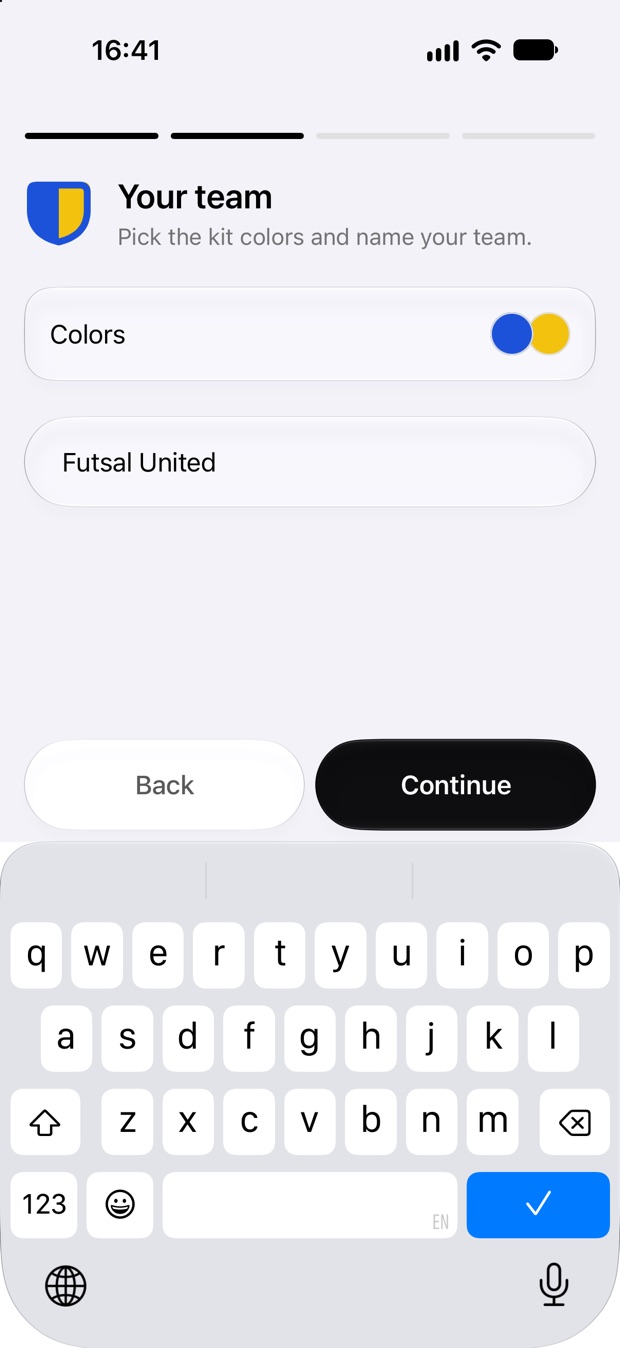
Type the team name the way you want parents to see it. Tap Colors to pick the shirt colour and a second colour. Pingel draws a crest from the two and uses it everywhere: on the scoreboard, the Lock Screen and the page your followers open.

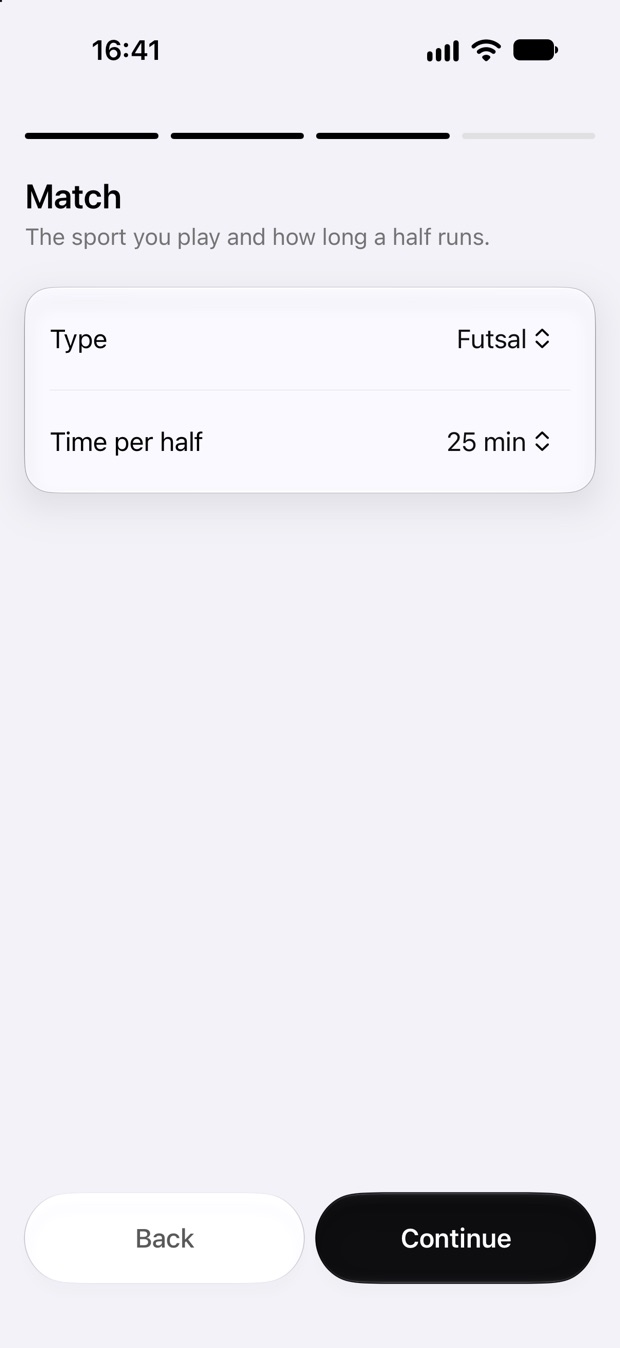
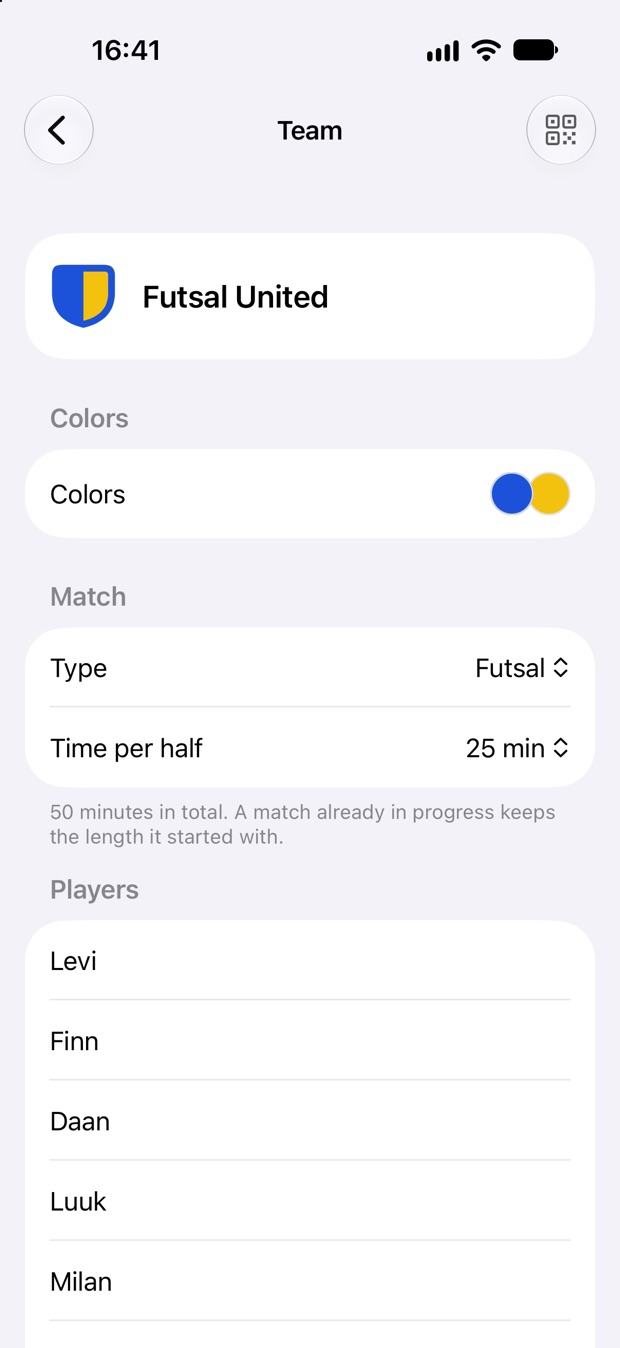
Then pick Futsal or Football, and set Time per half to what your competition plays. Pingel uses it to work out half time on its own.

Football teams also get a Line-up and substitutions switch. Turn it on to pick starters and log substitutions, and the stats count minutes and starts too.

The Your team step with the name Futsal United typed in and a blue and yellow crest.
Name and colours
The Match step with Type set to Futsal and Time per half set to 25 minutes.
Sport and half length

STEP 3

Add the squad

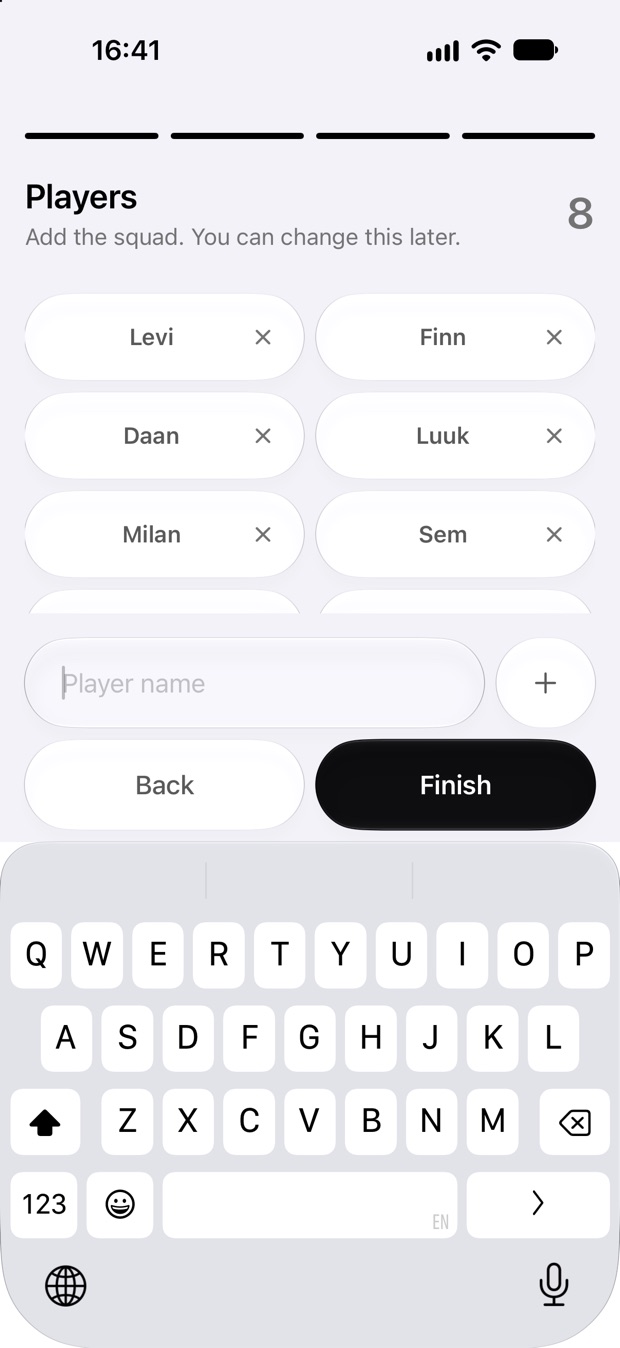
Type a first name and press return. The field stays open for the next one, so the whole squad goes in without lifting your thumb. Made a typo? Tap the × on the name.

Tap Finish and you land on your team's home screen, ready for the first match.

The Players step with eight players added as chips and a Finish button.
2

Bring everyone in

There are three ways in, one for each kind of person. Each works the same way: you show a code or send a link, and they scan or tap it.

MANAGERS

Share the team with other managers

Coaches, assistants, the parent who does the away games. Everyone shares one squad and one season, and any of them can keep the score. If two managers log the same match, Pingel merges their goals into one timeline.

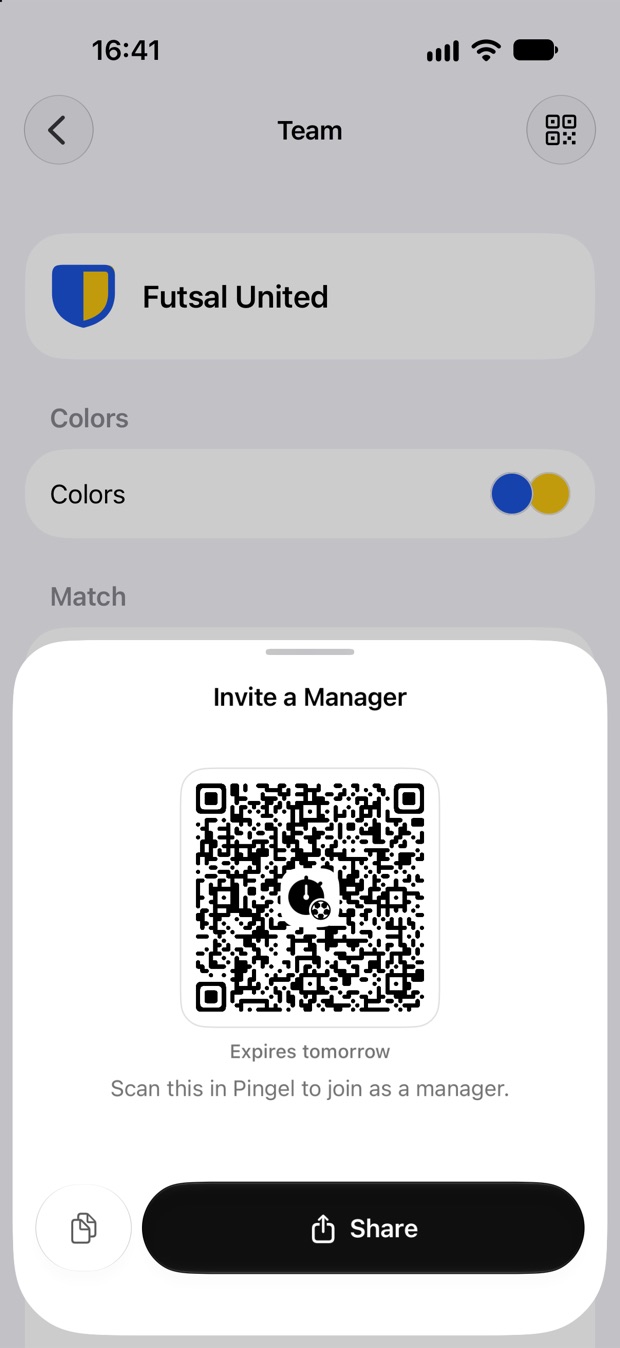
  1. You: tap ⋮ → Team Setup, then the QR button at the top right.
  2. They: tap Join a Team and scan the code, or tap the link you sent with Share.
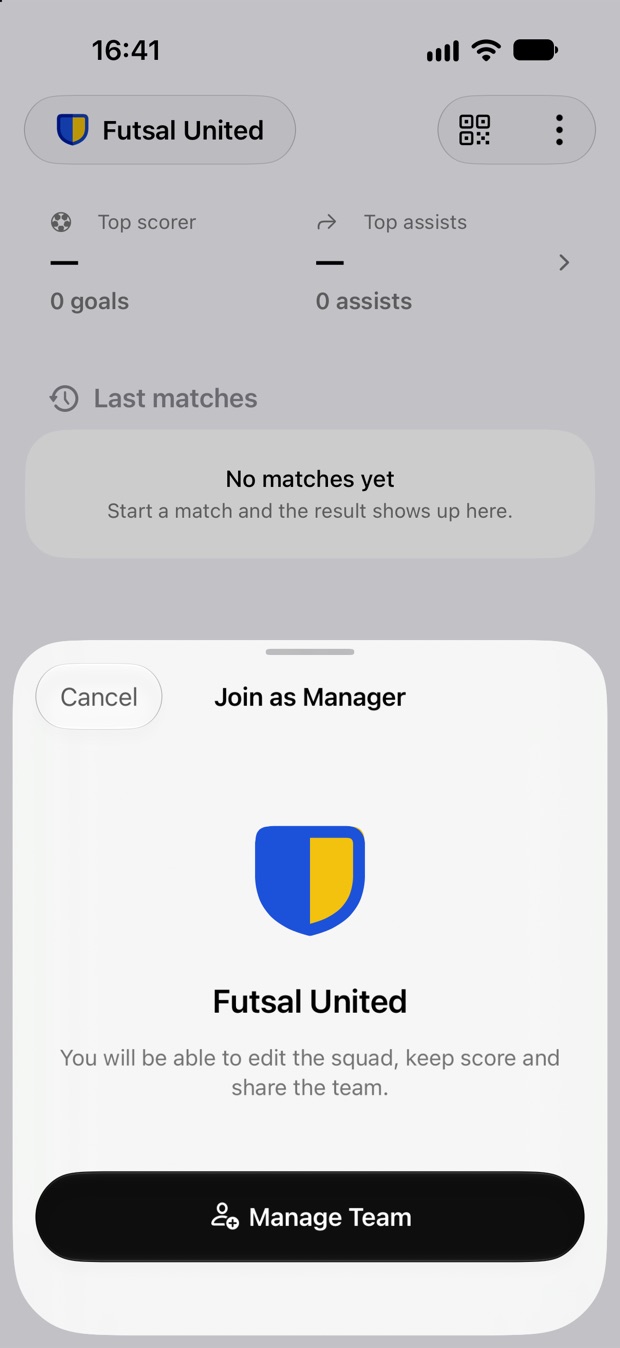
  3. They tap Manage Team, and the team, squad and every match so far are on their phone.

A manager invite works for 24 hours. Showing a new one cancels the old one, so an invite forwarded to the wrong group chat is easy to kill.

The Invite a Manager sheet with a QR code, an expiry note and Share and copy buttons.
Your phone
The Join as Manager sheet showing the Futsal United crest and a Manage Team button.
Their phone

FOLLOWERS

Let family follow the whole season

Followers see every live match, every result and the scoring chart on their own phone. They can look, but not change anything.

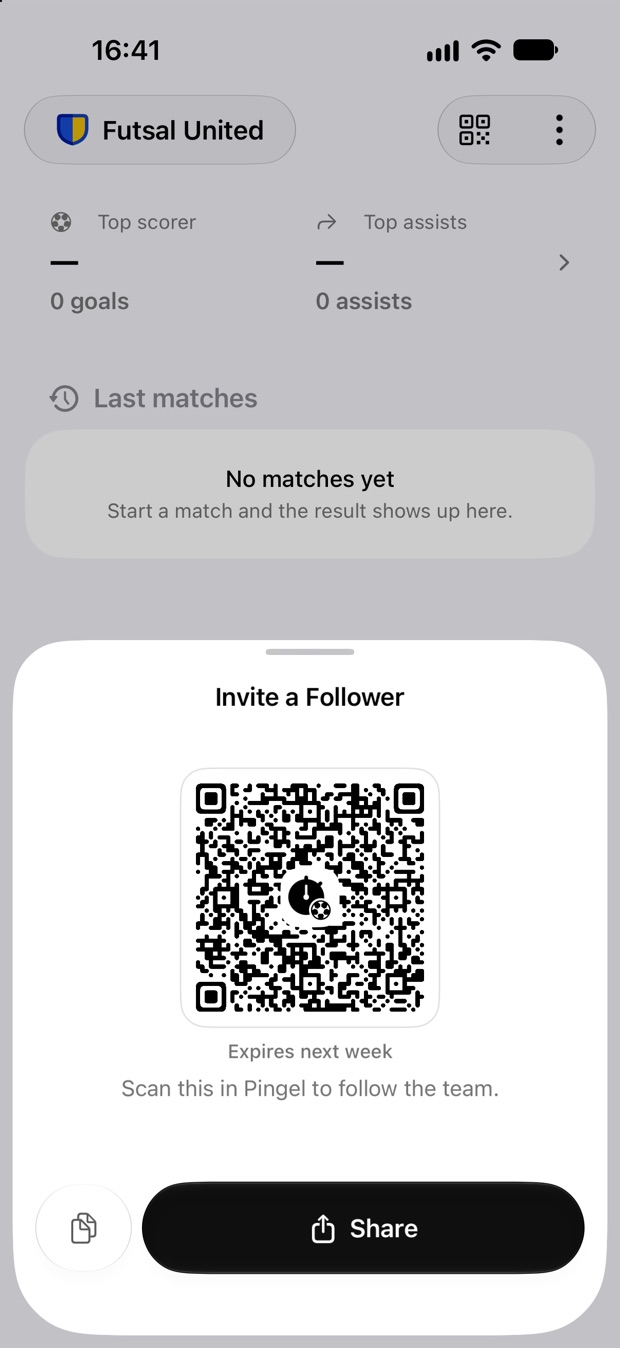
  1. You: tap the QR button at the top right of the home screen.
  2. They: tap Join a Team, scan or tap the link, then Follow Team.

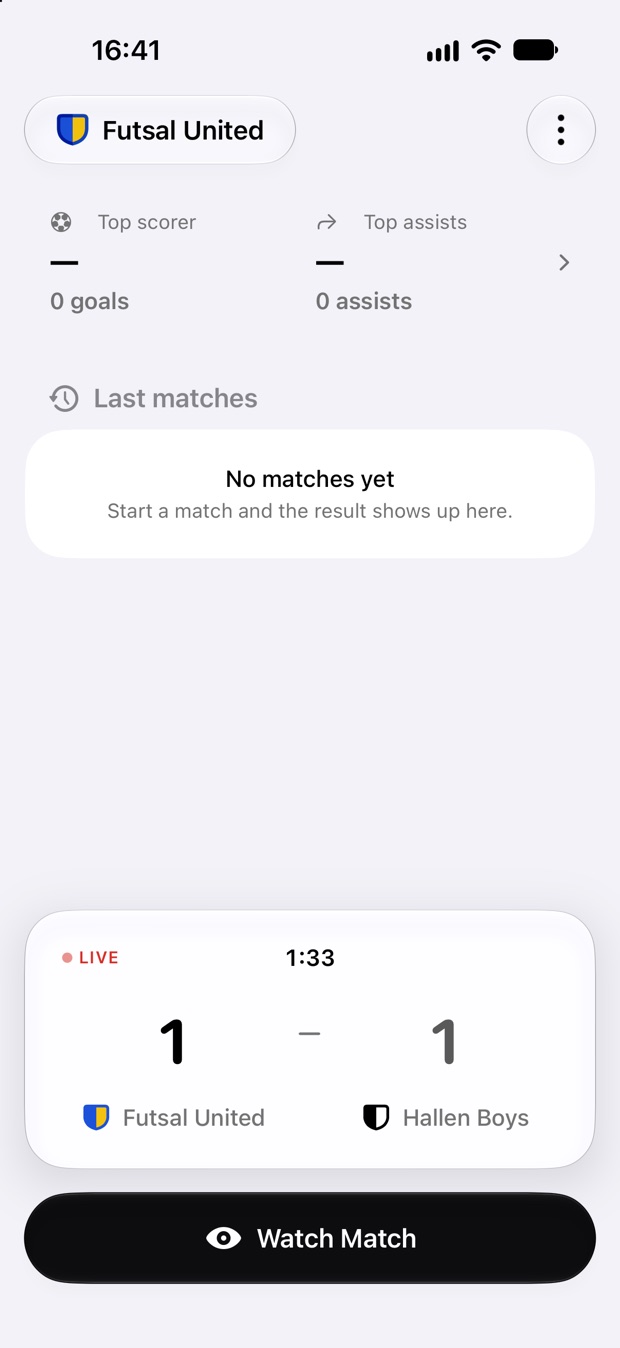
On match day a live card with the score and the clock appears on their home screen, and they can get a buzz for every goal.

A follower invite works for a week, so one message in the parents' group on Monday covers the whole weekend.

The Invite a Follower sheet with a QR code that expires next week.
Your phone
A follower's home screen with a live card at 1–1 and a Watch Match button.
Match day on theirs

ANYONE WITH THE LINK

Share one match live, no app needed

For the aunt abroad, the teammate who is ill or the other team's parents. They open the link in any browser and watch the clock, the score and every goal as it happens.

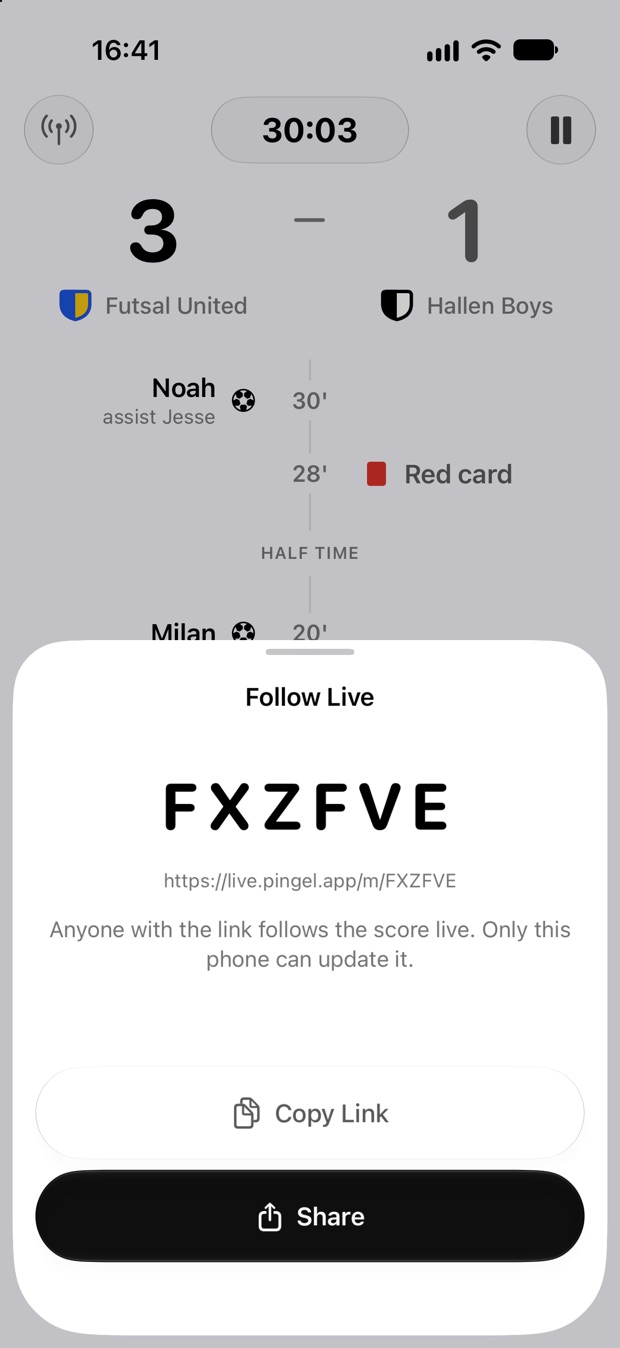
  1. On the match screen, tap the antenna button at the top left, or Share Link before kick-off.
  2. Tap Share to send it, or read out the six letters: they type them in on pingel.app.

The page shows first names only. It works from the moment you share the link until 12 hours after full time. Every manager keeps the same link updated, so handing the phone over at half time is fine.

The Follow Live sheet with the code FXZFVE, the link live.pingel.app/m/FXZFVE, and Copy Link and Share buttons.
Your phone
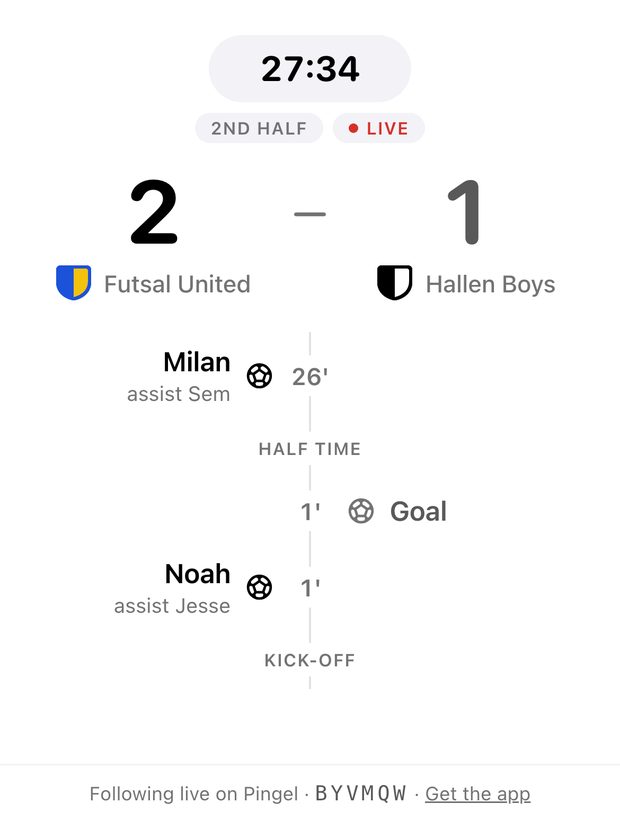
live.pingel.app/m/BYVMQW
The live page in a browser: 2–1 in the second half, with Milan's and Noah's goals in the timeline.
Any browser

Follower or live link?

Grandparents and regular parents are best as followers: they install the app once and get every match from then on. For somebody who only wants today's match, the live link is enough.

3

Run a match

On match day you need one hand and about two seconds per goal. Everything on the screen is sized for a thumb, with gloves on if need be.

BEFORE KICK-OFF

Set up the fixture and kick off

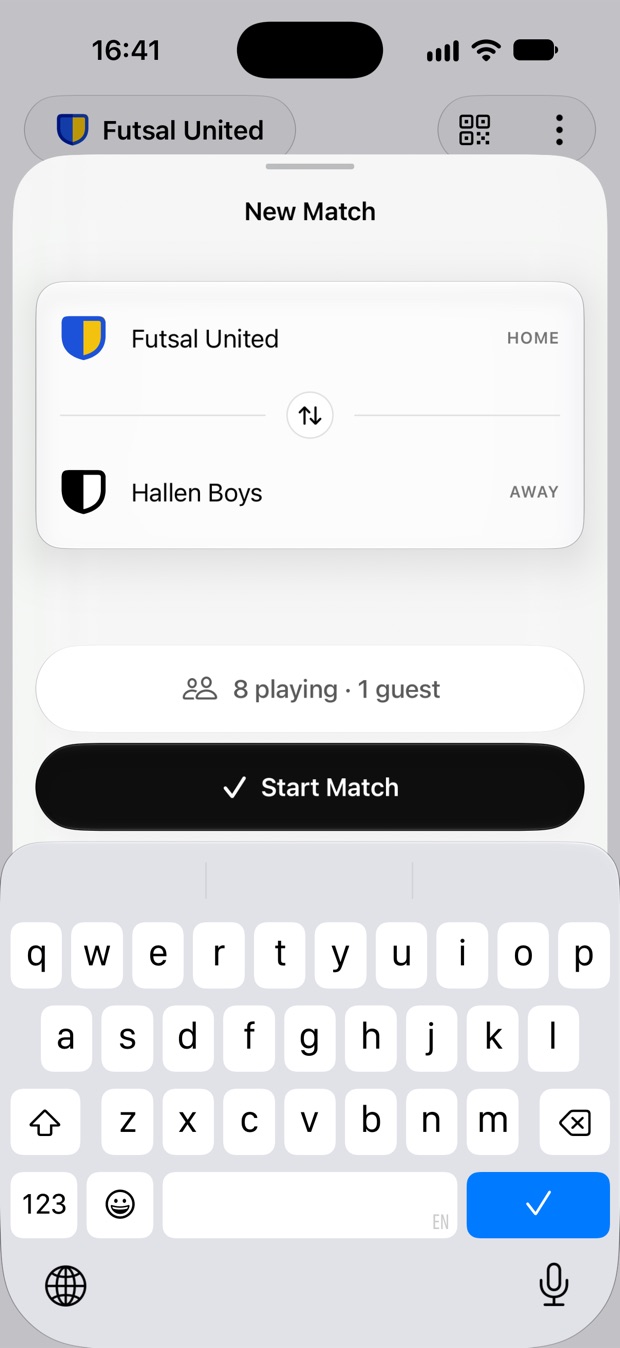
  1. Tap Start Match on the home screen and type the opponent's name.
  2. Playing away? Tap ↕ between the two teams to swap home and away.
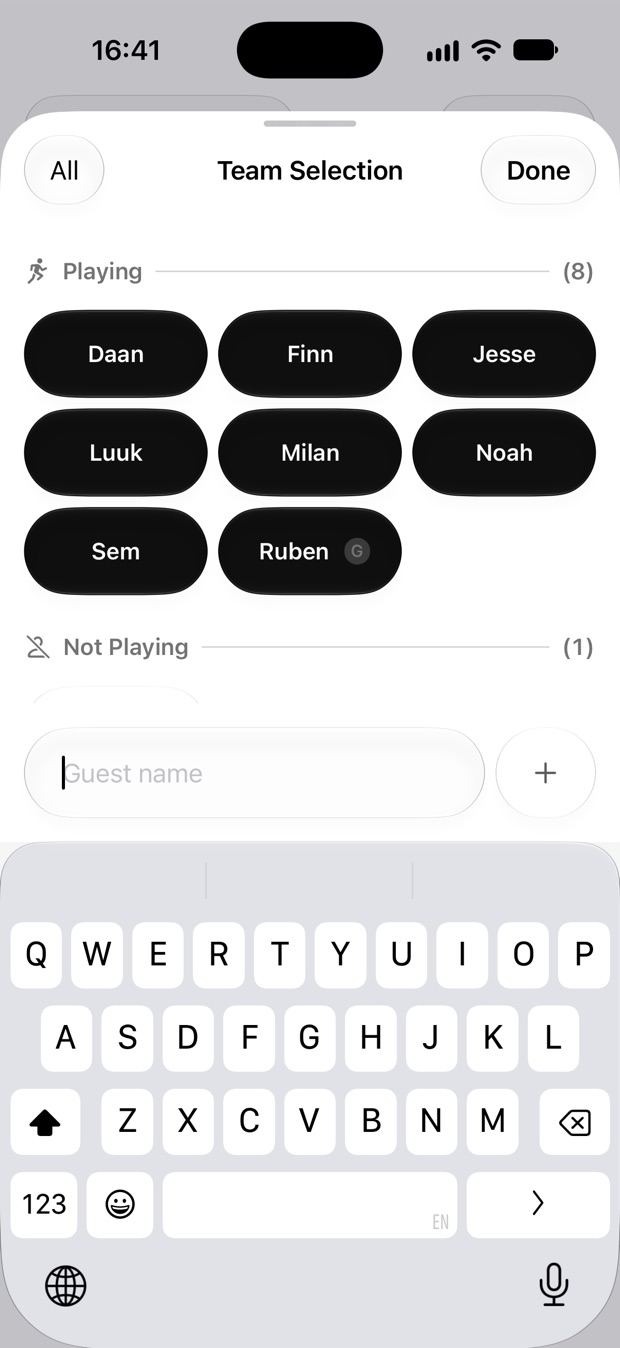
  3. Tap 8 playing to choose who plays today. Helping out just for today? Add them as a guest.
  4. Tap Start Match. You are on the match screen at 0:00, a good moment to send the live link.
  5. At the whistle, tap Start Match once more and the clock runs.

Lock the phone and the match carries on. The score and the clock sit on the Lock Screen and in the Dynamic Island.

The New Match sheet: Futsal United at home to Hallen Boys, 8 playing and 1 guest.
Opponent, home or away
Team Selection with eight players under Playing, including the guest Ruben.
Who plays today

GOALS AND CARDS

Two taps and it is in

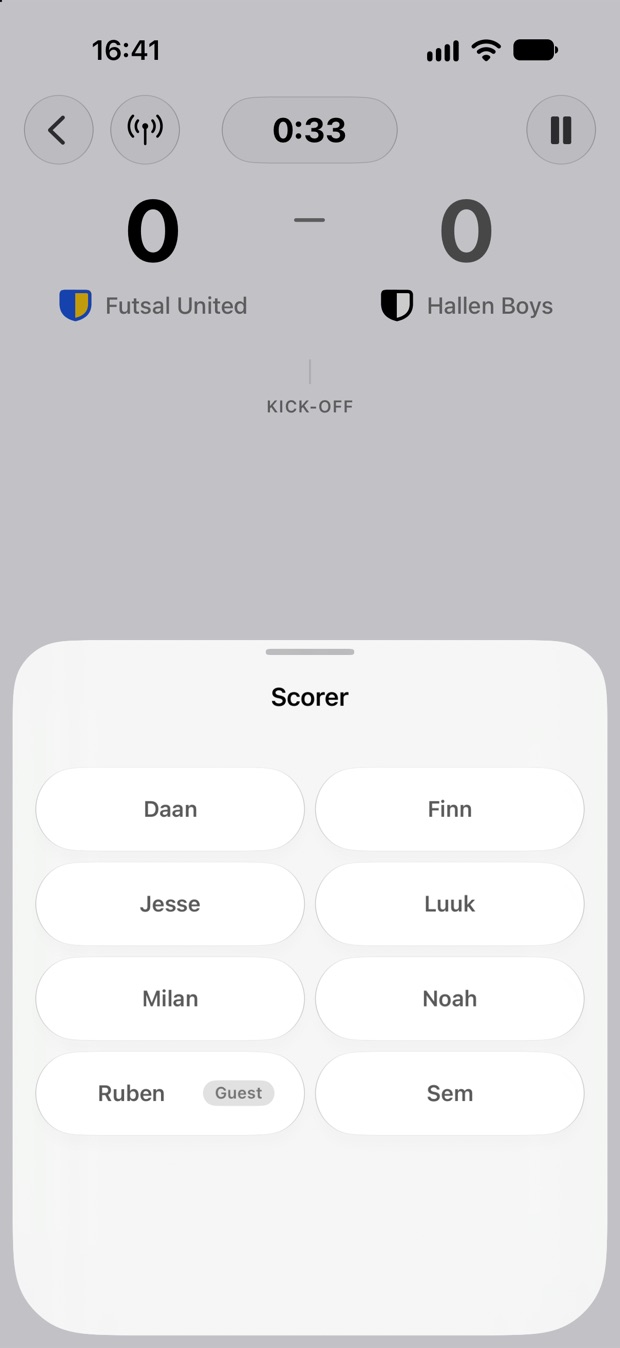
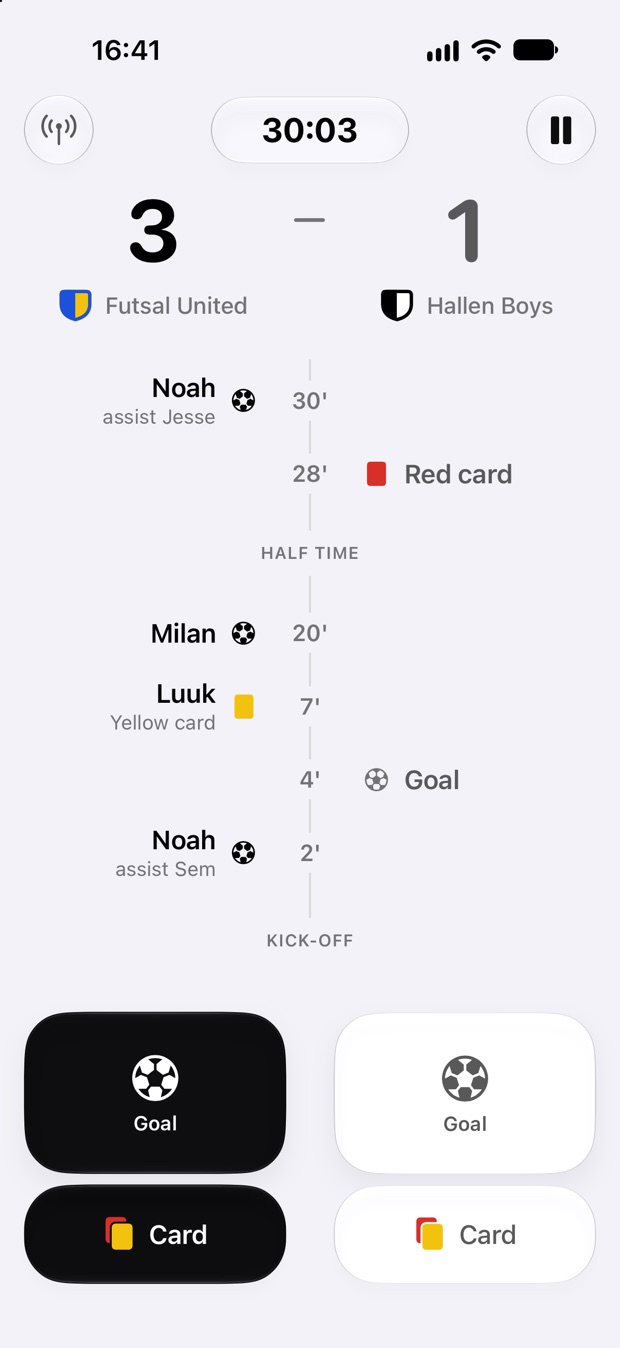
Your team's buttons are the solid black ones. Tap Goal, tap who scored, then who gave the assist or No assist. The score goes up and everyone following sees it at once.

A card works the same way: Card, the colour, the player. For the opponent you skip the names.

Tapped the wrong name? Tap the event in the timeline for Edit or Remove. The score corrects itself, and Undo brings back a removal.

The Scorer sheet listing the players who are playing today.
Who scored
A match in the second half at 3–1, with goals, a yellow card and a red card in the timeline.
Everything lands in the timeline

HALF TIME AND FULL TIME

Pause, carry on, end

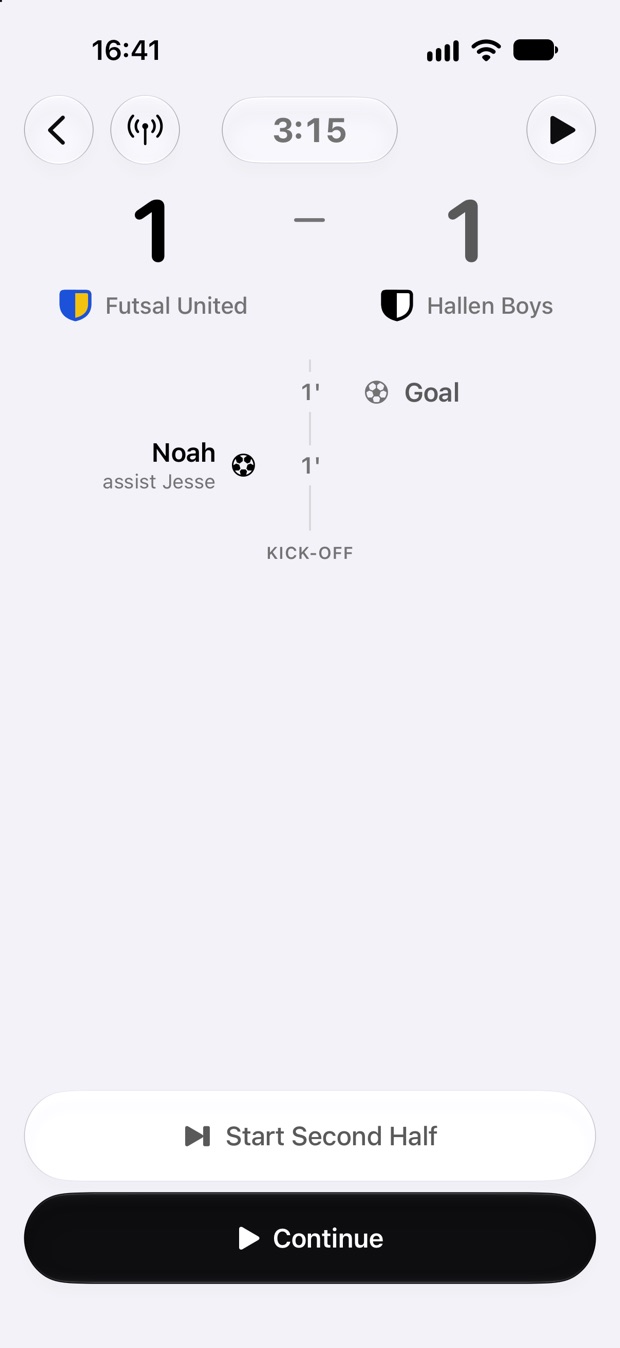
Tap pause at the top right whenever play stops. Then pick what comes next:

  1. Continue for a stoppage.
  2. Start Second Half after the break. You never tell Pingel it is half time: a pause once the half is over reads as the break.
  3. End Match at the final whistle.

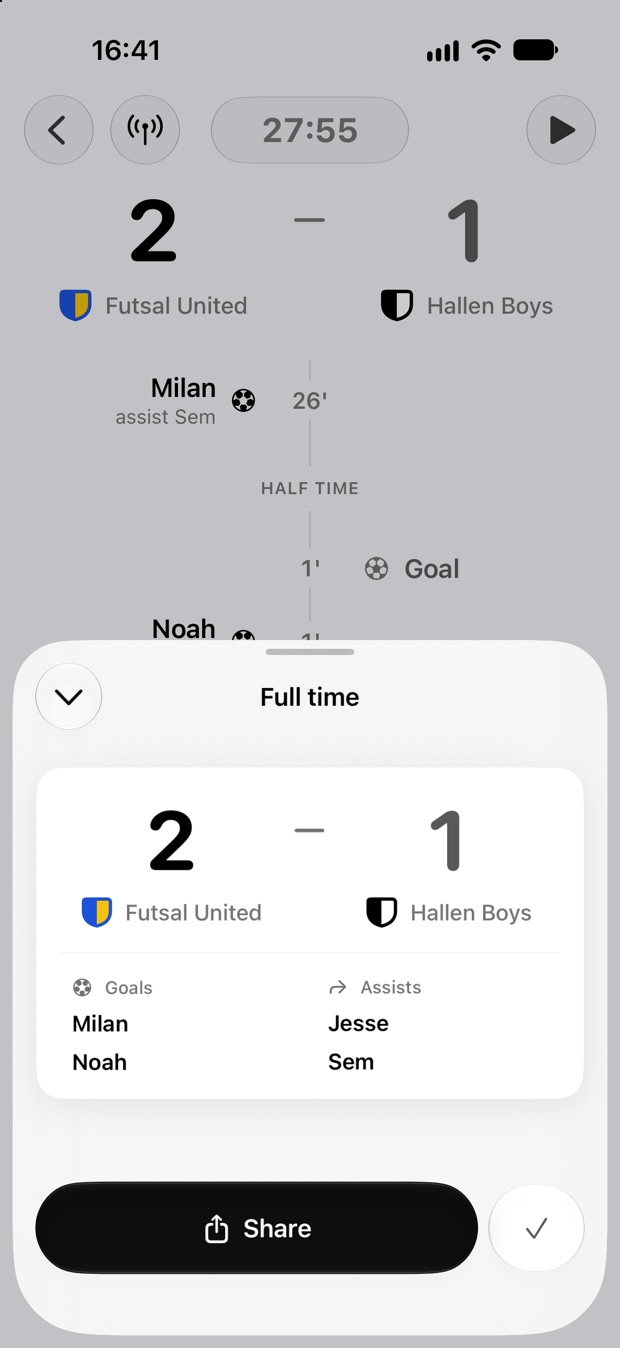
The Full time card shows the score, scorers and assists. Tap Share to send it to the group chat as an image, and ✓ to save the match.

A paused match with Start Second Half and Continue buttons.
Paused at half time
The Full time card: 2–1, goals by Milan and Noah, assists by Jesse and Sem, with a Share button.
The score card to share
4

The season, and changing things later

You never type a table or a top-scorer list. Pingel works all of it out from the goals you logged, so the numbers always match what happened on the pitch.

RESULTS AND STATS

The whole season at a glance

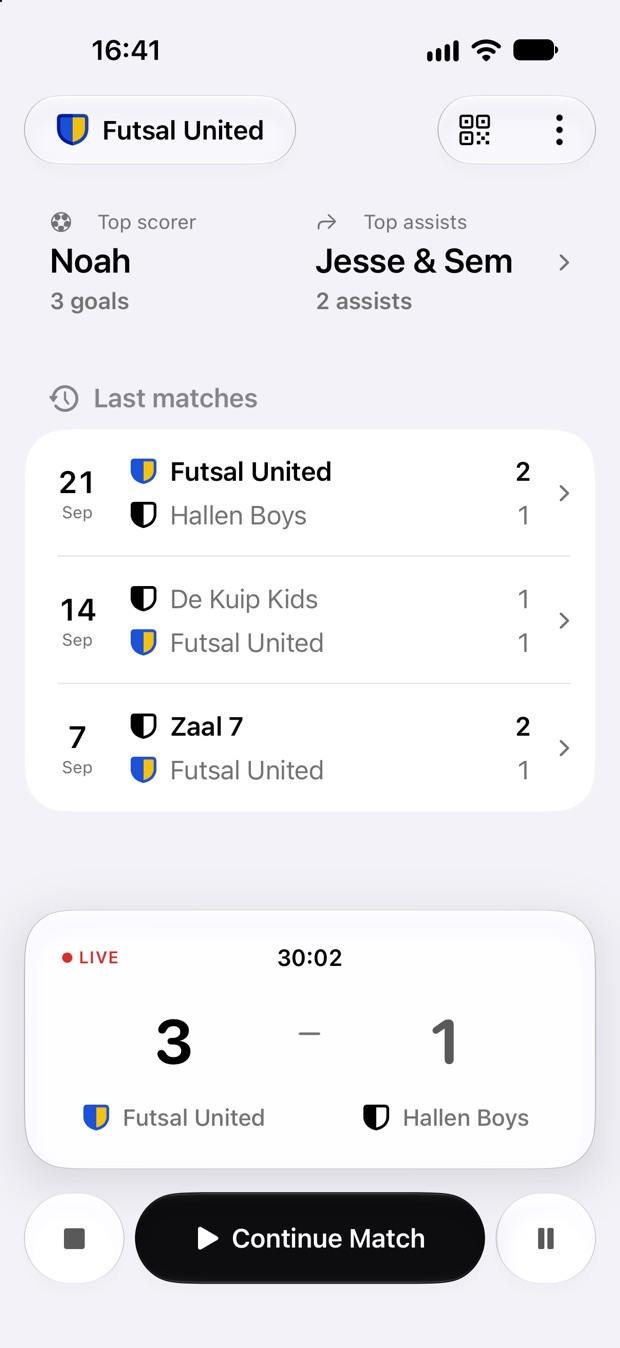
The home screen shows the top scorer, top assists and the last three results. A match that is still going has its own card, with Continue Match.

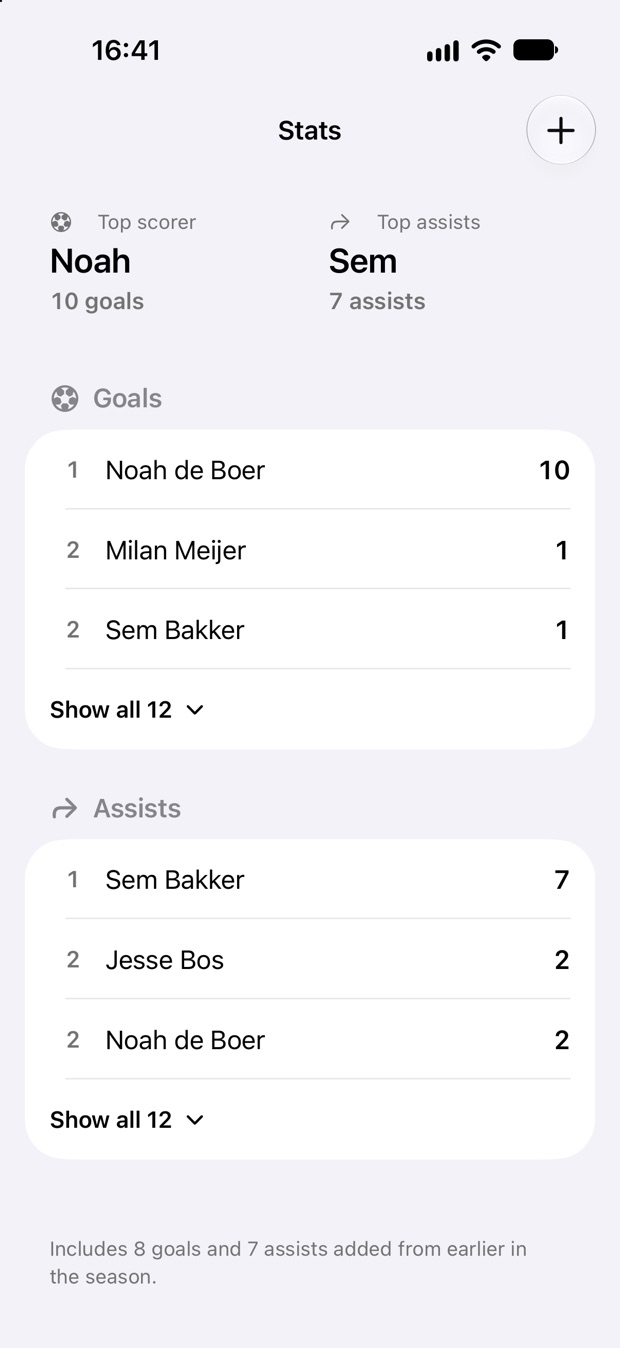
Tap a result to read its whole timeline back. Tap the top scorer for Stats: goals and assists for every player, guests included.

Started halfway through the season? Tap + on Stats and type in each player's goals and assists so far.

The home screen a few weeks in, with three results and a live match card.
Home, a few weeks in
The Stats screen with goals and assists tables for the season.
Stats

THE ⋮ MENU

Change the team, and the app

Team Setup has everything from chapter 1. Tap a player to rename them, swipe to remove them, or add one. Switch on Guest player for someone who only plays now and then.

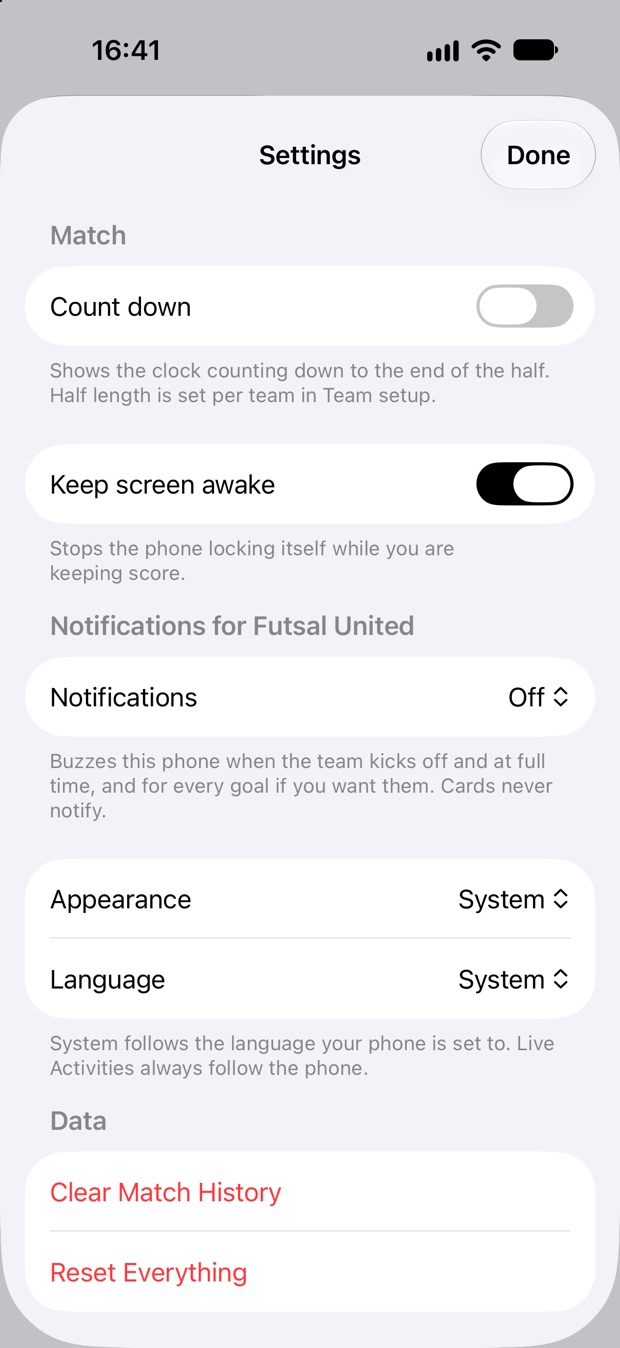
In Settings you can make the clock count down, keep the screen awake while you score, choose which moments buzz this phone, and pick light or dark and English or Dutch.

Run more than one team? Add each from ⋮ → Create Team… and switch with the team name at the top left.

The Team screen with the crest and name, colours, match settings and the list of players.
Team Setup
The Settings sheet: Count down, Keep screen awake, notifications, appearance and language.
Settings

Questions people ask

Does anybody need an account?

No. Managers and followers join with an invite, and people with a live link only open a page. Nobody ever types an email address or a password.

Does it work on Android?

Yes. The Android app has the same screens in the same order, with the same buttons. An iPhone manager and an Android manager can run the same team together.

What if two managers log the same goal?

Both phones update the same match, and each goal shows up once for each time it was tapped. If you both tapped it, remove the extra one from either phone and the other phone follows.

Can a follower change anything?

No. Followers can read everything but change nothing. They do not see the Start Match button or the invite codes, and Team Setup is read-only for them.

What leaves my phone?

Nothing, until you invite someone or share a match. A shared team keeps its squad and matches in sync between its managers and followers. A live link carries first names only. There are no ads. The full detail is on the privacy page.

I lost my phone. Is the team gone?

Not if another manager has it: install Pingel again and ask them for a fresh manager invite. A team on one phone only lives on that phone, which is one more reason to invite a second manager.

GET PINGEL

Ready for Sunday?

Free on iPhone and on Android. Set the team up tonight and the first match takes care of itself.